Mostrando postagens com marcador Feeds. Mostrar todas as postagens

quarta-feira, 25 de maio de 2011

Optimize And Personalize Your Feedburner Email Rss - Video Post

Email subscriptions are an option every blogger simply must provide and there is one service that dominates Email Rss.The Google owned feedburner does it better that anyone else.In this post we are looking at how you can get the most from the Email Feed offered on your blog.If you have not got a Feedburner Feed or Email Feed check out How To Create A Feedburner Feed For Your Blog.This is a video post and in the video we will be covering the three main areas of your Email Feed and how you can optimize and personalize them.
Click Here To View Full Post >>

Optimize And Personalize Your Feedburner Email Rss - Video Post

Email subscriptions are an option every blogger simply must provide and there is one service that dominates Email Rss.The Google owned feedburner does it better that anyone else.In this post we are looking at how you can get the most from the Email Feed offered on your blog.If you have not got a Feedburner Feed or Email Feed check out How To Create A Feedburner Feed For Your Blog.This is a video post and in the video we will be covering the three main areas of your Email Feed and how you can optimize and personalize them.
Click Here To View Full Post >>

Optimize And Personalize Your Feedburner Email Rss - Video Post

Email subscriptions are an option every blogger simply must provide and there is one service that dominates Email Rss.The Google owned feedburner does it better that anyone else.In this post we are looking at how you can get the most from the Email Feed offered on your blog.If you have not got a Feedburner Feed or Email Feed check out How To Create A Feedburner Feed For Your Blog.This is a video post and in the video we will be covering the three main areas of your Email Feed and how you can optimize and personalize them.
Click Here To View Full Post >>

sexta-feira, 6 de maio de 2011

Polaroid Icons Blog Subscription Gadget With Rollover Effect

The other day i posted 3 very cool sets of icons you could use to let people subscribe to your Rss Feed, Twitter and Facebook Page.In that post i gave you the code for the icons ready to use, you just had to add your URLs then copy and paste.Two of the icon sets were very similar both having a Polaroid Picture Design.One was fresh and bright while the other had a vintage worn look.This lead me to thinking wouldn't it be cool to have the worn vintage Polaroid icons in your sidebar and when someone hovers over them they switch to the bright clean icon.This is called a rollover effect. I'm sure you have seen image rollover effects before and this is a great way to use it.
Click Here To View Full Post >>

Polaroid Icons Blog Subscription Gadget With Rollover Effect

The other day i posted 3 very cool sets of icons you could use to let people subscribe to your Rss Feed, Twitter and Facebook Page.In that post i gave you the code for the icons ready to use, you just had to add your URLs then copy and paste.Two of the icon sets were very similar both having a Polaroid Picture Design.One was fresh and bright while the other had a vintage worn look.This lead me to thinking wouldn't it be cool to have the worn vintage Polaroid icons in your sidebar and when someone hovers over them they switch to the bright clean icon.This is called a rollover effect. I'm sure you have seen image rollover effects before and this is a great way to use it.
Click Here To View Full Post >>

Polaroid Icons Blog Subscription Gadget With Rollover Effect

The other day i posted 3 very cool sets of icons you could use to let people subscribe to your Rss Feed, Twitter and Facebook Page.In that post i gave you the code for the icons ready to use, you just had to add your URLs then copy and paste.Two of the icon sets were very similar both having a Polaroid Picture Design.One was fresh and bright while the other had a vintage worn look.This lead me to thinking wouldn't it be cool to have the worn vintage Polaroid icons in your sidebar and when someone hovers over them they switch to the bright clean icon.This is called a rollover effect. I'm sure you have seen image rollover effects before and this is a great way to use it.
Click Here To View Full Post >>

terça-feira, 3 de maio de 2011

Three Cool Blog Subscription Gadgets With Unique Icons


This week while doing a few jobs on blogs i added some very cool subscription icons to the sidebars.The icons link to the Rss Feed and Facebook and Twitter profiles for the blog.Pop the new Blogger Follow By Email Form gadget below the icons and you have all the main subscription options offered to readers.Anyway the icons look great one set is in the design of Polaroid photographs, the second set is the Polaroid Photograph Design but with a worn vintage feel and the third are very bright and colorful with a slight 3d look.I thought some readers of Spice Up Your Blog might like them so i have the code here and instructions to add them to your blog.The demo icons are connected to our Rss, Facebook and Twitter so you can check them out and subscribe, Like and Follow if you ain't already.
Click Here To View Full Post >>

Three Cool Blog Subscription Gadgets With Unique Icons


This week while doing a few jobs on blogs i added some very cool subscription icons to the sidebars.The icons link to the Rss Feed and Facebook and Twitter profiles for the blog.Pop the new Blogger Follow By Email Form gadget below the icons and you have all the main subscription options offered to readers.Anyway the icons look great one set is in the design of Polaroid photographs, the second set is the Polaroid Photograph Design but with a worn vintage feel and the third are very bright and colorful with a slight 3d look.I thought some readers of Spice Up Your Blog might like them so i have the code here and instructions to add them to your blog.The demo icons are connected to our Rss, Facebook and Twitter so you can check them out and subscribe, Like and Follow if you ain't already.
Click Here To View Full Post >>

Three Cool Blog Subscription Gadgets With Unique Icons


This week while doing a few jobs on blogs i added some very cool subscription icons to the sidebars.The icons link to the Rss Feed and Facebook and Twitter profiles for the blog.Pop the new Blogger Follow By Email Form gadget below the icons and you have all the main subscription options offered to readers.Anyway the icons look great one set is in the design of Polaroid photographs, the second set is the Polaroid Photograph Design but with a worn vintage feel and the third are very bright and colorful with a slight 3d look.I thought some readers of Spice Up Your Blog might like them so i have the code here and instructions to add them to your blog.The demo icons are connected to our Rss, Facebook and Twitter so you can check them out and subscribe, Like and Follow if you ain't already.
Click Here To View Full Post >>

quarta-feira, 13 de abril de 2011

Easy Way To Remove Subscribe To Posts Atom Feed Links On Blogger

remove atom feed links bloggerI'm sure you all have noticed the feed links below the posts on Blogger with the "Subscribe To Posts Atom" message.To be honest i don't care for them and many other blogger users seem to feel the same, Atom lost the war with Rss and anyway the link is in a poor position taking up space.So unpopular are these links (Feed Links are the proper name) that there are tutorials on almost every Blogger Tips Blog showing how to remove them.That's the reason i haven't covered it previously if you looked for how to remove them you would have no trouble finding instructions.
Click Here To View Full Post >>

Easy Way To Remove Subscribe To Posts Atom Feed Links On Blogger

remove atom feed links bloggerI'm sure you all have noticed the feed links below the posts on Blogger with the "Subscribe To Posts Atom" message.To be honest i don't care for them and many other blogger users seem to feel the same, Atom lost the war with Rss and anyway the link is in a poor position taking up space.So unpopular are these links (Feed Links are the proper name) that there are tutorials on almost every Blogger Tips Blog showing how to remove them.That's the reason i haven't covered it previously if you looked for how to remove them you would have no trouble finding instructions.
Click Here To View Full Post >>

quinta-feira, 17 de março de 2011

New Subscribe By Email Rss Form For Blogger

In the last post we got a sneak preview of the New Blogger Design coming in 2011, Blogger had also promised lots more new features.And just a day later they have added an Email Rss Form to the Gadget Directory so you can easily provide the option for your readers to get your latest posts delivered to their inbox.By coincidence i also published a post this week about how Google connect their other services with Blogger and the Email Rss Form is connected with the Google owned Feedburner.

Email Rss has been provided by Feedburner for a long time and before you had the option to "Burn A Feed" for your blog, Activate Email Rss, Grab The Code For The Email Form and then paste it into a Html/Javascript gadget on your sidebar.Now this whole process has been cut down to 3 clicks without the need to leave Blogger.

"...The Follow by Email gadget provides blog authors a simple way for their readers to subscribe to the latest hot-off-the-press updates, which are delivered directly to the reader’s inbox. When new blog content is published, all subscribed readers will receive a daily email notification of the new published posts, which includes a copy of the new content as well as links back to the actual posts..."

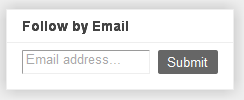
So lets first look at a screenshot and then how you add the Email Rss form to your blog.

Screenshot Of Email Rss Form

Blogger Email Rss Form

Add The New Email Rss Gadget To Your Blog


Step 1. In your Blogger Dashboard Click Design > Add A Gadget


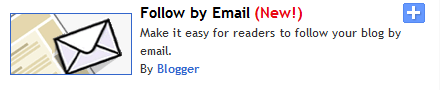
Step 2. You will see the new option "Follow By Email" at the top of the list, click the plus.


Step 3. You Will now be brought to a Page with options for your feed and the title of the gadget.If you already have a feedburner feed you can enter it were shown below, if you don't have a feed one will automatically generated for you.


Step 4. You can now save the gadget.

Options - I would highly recommend you take advantage of some of the other options available on feedburner.Remember once you add this gadget to your blog a Feedburner account is automatically created for you.You can log into this account with the same Email and Password as you log into Blogger - Log Into Feedburner.

That's your new Email Rss form, i may look at some Css options to Spice It Up a bit so keep an eye out for that.Check out some more Feedburner Tips and Blogger Gadgets on Spice Up Your Blog.

Drop Your Comments, Views And Questions Below.

New Subscribe By Email Rss Form For Blogger

In the last post we got a sneak preview of the New Blogger Design coming in 2011, Blogger had also promised lots more new features.And just a day later they have added an Email Rss Form to the Gadget Directory so you can easily provide the option for your readers to get your latest posts delivered to their inbox.By coincidence i also published a post this week about how Google connect their other services with Blogger and the Email Rss Form is connected with the Google owned Feedburner.

Email Rss has been provided by Feedburner for a long time and before you had the option to "Burn A Feed" for your blog, Activate Email Rss, Grab The Code For The Email Form and then paste it into a Html/Javascript gadget on your sidebar.Now this whole process has been cut down to 3 clicks without the need to leave Blogger.

"...The Follow by Email gadget provides blog authors a simple way for their readers to subscribe to the latest hot-off-the-press updates, which are delivered directly to the reader’s inbox. When new blog content is published, all subscribed readers will receive a daily email notification of the new published posts, which includes a copy of the new content as well as links back to the actual posts..."

So lets first look at a screenshot and then how you add the Email Rss form to your blog.

Screenshot Of Email Rss Form

Blogger Email Rss Form

Add The New Email Rss Gadget To Your Blog


Step 1. In your Blogger Dashboard Click Design > Add A Gadget


Step 2. You will see the new option "Follow By Email" at the top of the list, click the plus.


Step 3. You Will now be brought to a Page with options for your feed and the title of the gadget.If you already have a feedburner feed you can enter it were shown below, if you don't have a feed one will automatically generated for you.


Step 4. You can now save the gadget.

Options - I would highly recommend you take advantage of some of the other options available on feedburner.Remember once you add this gadget to your blog a Feedburner account is automatically created for you.You can log into this account with the same Email and Password as you log into Blogger - Log Into Feedburner.

That's your new Email Rss form, i may look at some Css options to Spice It Up a bit so keep an eye out for that.Check out some more Feedburner Tips and Blogger Gadgets on Spice Up Your Blog.

Drop Your Comments, Views And Questions Below.

New Subscribe By Email Rss Form For Blogger

In the last post we got a sneak preview of the New Blogger Design coming in 2011, Blogger had also promised lots more new features.And just a day later they have added an Email Rss Form to the Gadget Directory so you can easily provide the option for your readers to get your latest posts delivered to their inbox.By coincidence i also published a post this week about how Google connect their other services with Blogger and the Email Rss Form is connected with the Google owned Feedburner.

Email Rss has been provided by Feedburner for a long time and before you had the option to "Burn A Feed" for your blog, Activate Email Rss, Grab The Code For The Email Form and then paste it into a Html/Javascript gadget on your sidebar.Now this whole process has been cut down to 3 clicks without the need to leave Blogger.

"...The Follow by Email gadget provides blog authors a simple way for their readers to subscribe to the latest hot-off-the-press updates, which are delivered directly to the reader’s inbox. When new blog content is published, all subscribed readers will receive a daily email notification of the new published posts, which includes a copy of the new content as well as links back to the actual posts..."

So lets first look at a screenshot and then how you add the Email Rss form to your blog.

Screenshot Of Email Rss Form

Blogger Email Rss Form

Add The New Email Rss Gadget To Your Blog


Step 1. In your Blogger Dashboard Click Design > Add A Gadget


Step 2. You will see the new option "Follow By Email" at the top of the list, click the plus.


Step 3. You Will now be brought to a Page with options for your feed and the title of the gadget.If you already have a feedburner feed you can enter it were shown below, if you don't have a feed one will automatically generated for you.


Step 4. You can now save the gadget.

Options - I would highly recommend you take advantage of some of the other options available on feedburner.Remember once you add this gadget to your blog a Feedburner account is automatically created for you.You can log into this account with the same Email and Password as you log into Blogger - Log Into Feedburner.

That's your new Email Rss form, i may look at some Css options to Spice It Up a bit so keep an eye out for that.Check out some more Feedburner Tips and Blogger Gadgets on Spice Up Your Blog.

Drop Your Comments, Views And Questions Below.

terça-feira, 1 de fevereiro de 2011

Stay Connected Stylish Rss Feed And Social Gadget For Blogger


In a previous post i published 5 Full Subscribe Sections with Email Rss Form, Social Icons and Feedburner Subscriber count.In this post i will show you a much more simple way to display the Subscription options for your blog.The gadget has Three icons for your Rss Feed, Twitter Profile and Facebook Page proceeded by a handwriting Follow message with arrow.The icons are the standard design but with a caption, so along with the follow arrow this will be an eye catching addition to your blog.

Adding the gadget is easy and i will show you how to add it to your blogs sidebar or footer.I will also show you how to add it below all your posts, when someone reaches the end of a post if they like it they will often subscribe.The icons along with thousands more can be found on Social Icon Studio.
Click Here To View Full Post >>

terça-feira, 18 de janeiro de 2011

Get More Feedburner Email Subscribers To Verify Their Subscription

Rss Feed Tray IconMost Bloggers Have A Subscribe By Email Rss Option On Their Blog Provided By Feedburner.When A Visitor To Your Blog Fills Out The Subscription Form They Must Confirm Or Verify Via An Email.However Often As Many As One In Five People Do Not Verify, Thus They Do Not Become Subscribers And Receive Your Latest Posts.In This Post I Will Share With You Some Methods That Will Help Get More Verified Email Rss Subscribers.

At the time of writing Spice Up Your Blog has just over 500 Rss Subscribers of which just over 300 subscribe by Email.Of that 300 an Amazing 92 have not verified their subscription !This is 92 regular readers lost, almost all of these people just didn't know they needed to verify or did not understand the Verification Email.
Click Here To View Full Post >>

Get More Feedburner Email Subscribers To Verify Their Subscription

Rss Feed Tray IconMost Bloggers Have A Subscribe By Email Rss Option On Their Blog Provided By Feedburner.When A Visitor To Your Blog Fills Out The Subscription Form They Must Confirm Or Verify Via An Email.However Often As Many As One In Five People Do Not Verify, Thus They Do Not Become Subscribers And Receive Your Latest Posts.In This Post I Will Share With You Some Methods That Will Help Get More Verified Email Rss Subscribers.

At the time of writing Spice Up Your Blog has just over 500 Rss Subscribers of which just over 300 subscribe by Email.Of that 300 an Amazing 92 have not verified their subscription !This is 92 regular readers lost, almost all of these people just didn't know they needed to verify or did not understand the Verification Email.
Click Here To View Full Post >>

sexta-feira, 10 de dezembro de 2010

New - Use Read More Summary's In Blogger Rss Feed

blogger feed optionsBlogger today added a very interesting new feature to the Rss Feed settings on all blogs.Since the Blogger team added the Read More Jump Break in September 2009 many blogs has used the option to display the latest posts as a summary on the home page with a read more link.Now you can also add a summary and read more link to your Blogs Rss Feed.Until now you could display a full or short version of your posts in your feed but you had no control over the size of the short feed.With this new setting you can choose to display exactly the same summary in the feed as on the home page with the read more link.

"...The challenge with feeds is that it’s never been possible to control exactly how much content is delivered. Up until now, the options have been “Short” and “Full”. Short produces a feed that contains around the first 400 characters of the post, with HTML and images removed. Full produces a feed that contains everything in the post, including HTML and images. But what about those instances where you want to give your users a taste—an image or two with some introductory text—and then have them visit your blog to see the full post? Well today we’ve launched a third option that lets you do just that using Jump Breaks..."

You can enable this feature via your blogs Feed Settings.

Read More Rss Feeds On Blogger


1. In your Blogger Dashboard Click > Settings > Site Feed > Allow Blog Feeds Drop Down.

read more rss feed
2. Choose 'Until Jump Break' and save.

Your Blogs Rss Feed will now only display a summary and any images used until the jump break.If your thinking "Paul Whats A Jump Break ?" you can get all the details here - Blogger Jump Break Read More.

A very interesting option and as far as i know Totally unique to Blogger, you can see the official post by Blogger here - Take Control of Your Site Feed.Check out more Of  The Latest Blogger News And Rss Feed Tips Here On Spice Up Your Blog.

Drop Your Comments Views And Questions Below.

sexta-feira, 26 de novembro de 2010

Fix The 'Cannot Find A Feed' Problem On Blogger

This is a quick post that I'm sure any of you that have experienced problems with Finding a feed from their blogs URL will appreciate.In fact even if you have not come across this problem you might want to follow the steps to make sure your Blogs feed can be easily found.OK so the problem I'm referring to occurs when you enter your Blogs URL (Home Page Address) somewhere and they try to fetch your Feed but return unsuccessful.Examples would be when you submit to Blog Directories, Add your blog to a Blog Roll or comment on Blogs with Comment Luv.In all these cases they try to find the feed to list one or more of your recent posts but the feed cannot be found.

This is a problem a number of Blogger users seem to be having and it can be easily fixed.Below i will show you a snippet of code you can add to the head of your template that can be found instantly.Sounds good so lets do it.

Add Default Feed Link To Your Blogs Template


Step 1. In your Blogger dashboard click > 'Design' > 'Edit Html'


Step 2. Find the following piece of code in your blogs Html (It's Near The Top):

<head>

Step 3. Copy and paste the following code Directly Below / Under <head>

<link href='YOUR-BLOGS-FEED-URL' rel='alternate' title='YOUR BLOGS TITLE' type='application/rss+xml'/>

Note - You must make the following changes :

Replace YOUR-BLOGS-FEED-URL with your blogs feed address, If you have a Feedburner URL use that otherwise use the default feed(Drop a comment below if your unsure of your blogs feed URL).

Replace YOUR BLOGS TITLE with the title of your blog, for example i would add Spice Up Your Blog.

Step 4. OK Save Your Template, you have added a feed link to your template that can be quickly found and returned by any Programme, Bot, Spider or Aliens from Jupiter.Make sure to check out more of our Posts with Tips To Help With Your Rss Feed.

Drop Your Comments, views and Questions Below.

Fix The 'Cannot Find A Feed' Problem On Blogger

This is a quick post that I'm sure any of you that have experienced problems with Finding a feed from their blogs URL will appreciate.In fact even if you have not come across this problem you might want to follow the steps to make sure your Blogs feed can be easily found.OK so the problem I'm referring to occurs when you enter your Blogs URL (Home Page Address) somewhere and they try to fetch your Feed but return unsuccessful.Examples would be when you submit to Blog Directories, Add your blog to a Blog Roll or comment on Blogs with Comment Luv.In all these cases they try to find the feed to list one or more of your recent posts but the feed cannot be found.

This is a problem a number of Blogger users seem to be having and it can be easily fixed.Below i will show you a snippet of code you can add to the head of your template that can be found instantly.Sounds good so lets do it.

Add Default Feed Link To Your Blogs Template


Step 1. In your Blogger dashboard click > 'Design' > 'Edit Html'


Step 2. Find the following piece of code in your blogs Html (It's Near The Top):

<head>

Step 3. Copy and paste the following code Directly Below / Under <head>

<link href='YOUR-BLOGS-FEED-URL' rel='alternate' title='YOUR BLOGS TITLE' type='application/rss+xml'/>

Note - You must make the following changes :

Replace YOUR-BLOGS-FEED-URL with your blogs feed address, If you have a Feedburner URL use that otherwise use the default feed(Drop a comment below if your unsure of your blogs feed URL).

Replace YOUR BLOGS TITLE with the title of your blog, for example i would add Spice Up Your Blog.

Step 4. OK Save Your Template, you have added a feed link to your template that can be quickly found and returned by any Programme, Bot, Spider or Aliens from Jupiter.Make sure to check out more of our Posts with Tips To Help With Your Rss Feed.

Drop Your Comments, views and Questions Below.